
MaxiFi's main navigation now stays on the left side of the screen, giving you a consistent way to move between household information, profiles, plan reports, and planning tools.
Note: The screenshots in this article are from a MaxiFi Pro account. Household accounts may look slightly different and may not include every item shown.
Navigation at a Glance
The menu remains available as you work. Select a labeled item to open that area, or choose Collapse Menu when you want more room on the page. In the collapsed view, the same destinations remain available as icons; use the arrow at the top to expand the menu again.
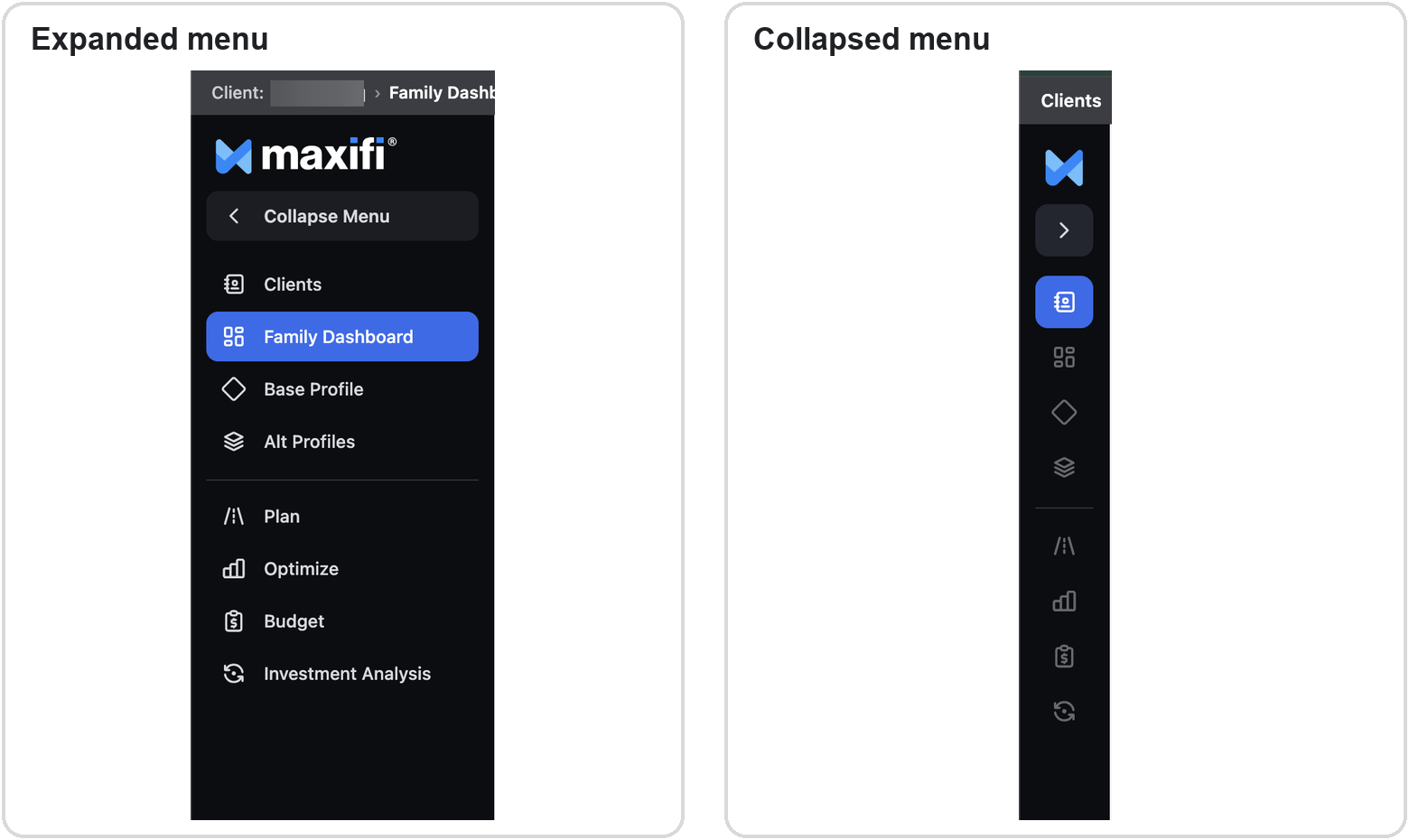
Expanded and collapsed views of the left hand navigation
Start with the Household and Profiles
Family Dashboard gives you an overview of the selected household. Base Profile is where you review and update the information used to build the plan. When Base Profile is open, a second navigation column organizes details such as earnings, Social Security, assets, housing, and settings.
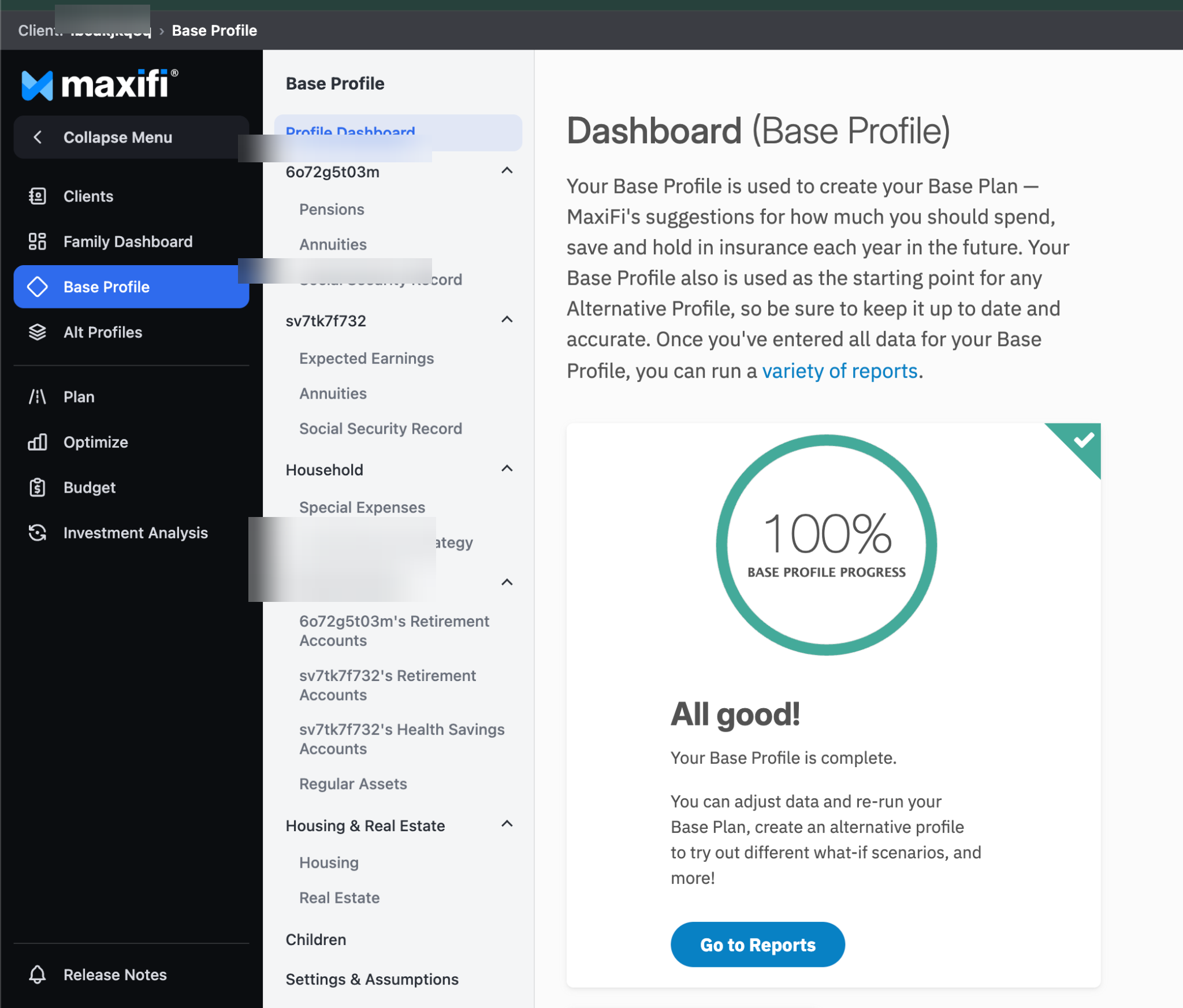
Base Profile opens a second menu for the household's detailed information
Manage What-If Scenarios with Alt Profiles
Select Alt Profiles to create or open alternative scenarios. Alternative Profiles let you test a change without replacing the information in your Base Profile. Profile names in this example have been blurred for privacy.
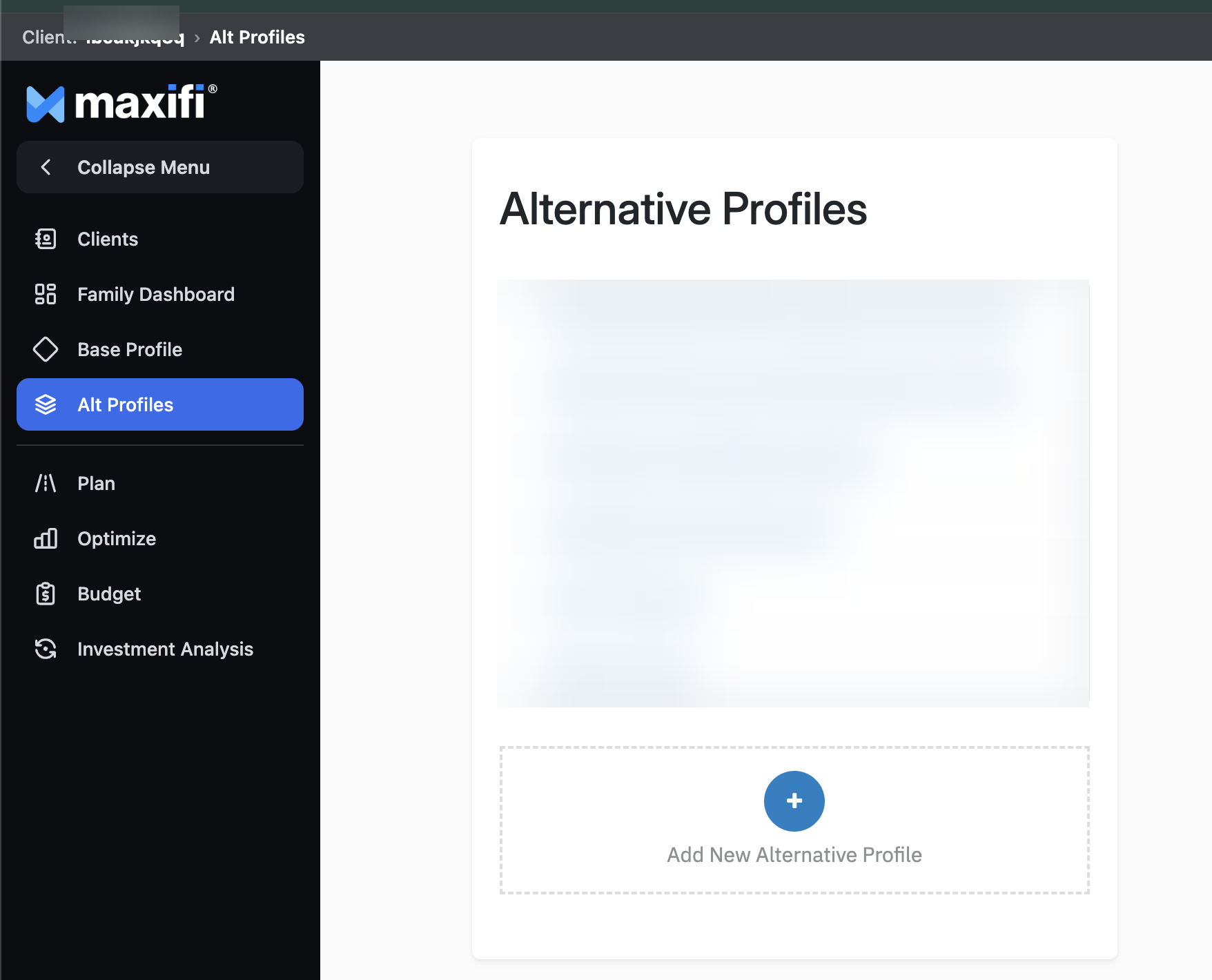
Alt Profiles is the central place to create and manage scenarios
Run a Plan and Switch Profiles
Select Plan to run the Base Plan or a Survivor Plan. On report and analysis screens, use the Profile selector near the top of the page to switch between the Base Profile and an Alternative Profile. Alternative Profile names in the example are blurred.
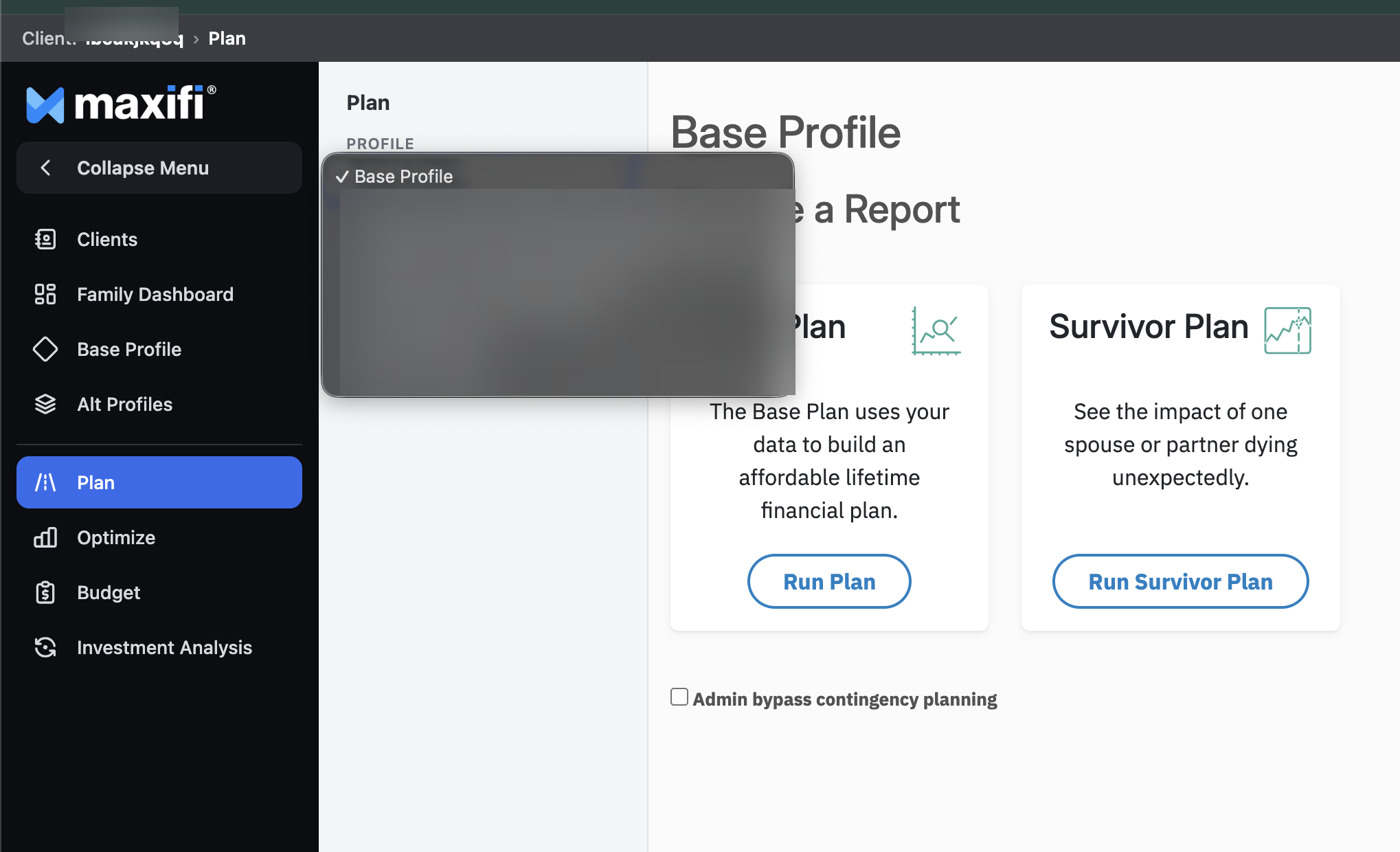
The Profile selector lets you choose which profile to use for a plan or analysis
Open Specialized Planning Tools
The remaining menu items take you directly to focused tools. Optimize helps you test selected planning strategies. Budget supports current year tracking. Investment Analysis opens the available Monte Carlo reports. The options you see may vary by account type. Budget figures in the example are blurred.
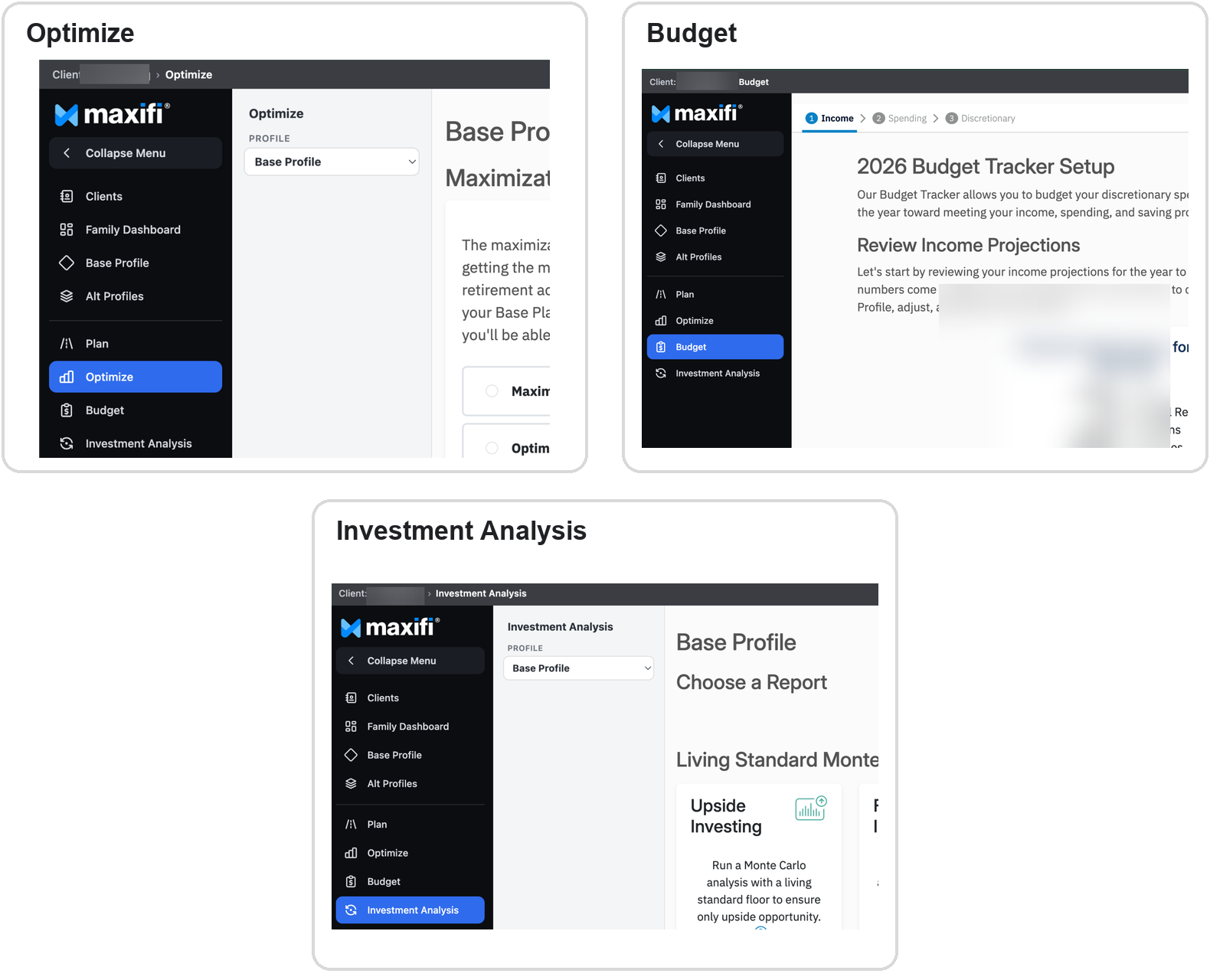
Optimize Budget and Investment Analysis are available directly from the left menu
Quick Reference
Where to Begin
If you are unsure where to start, open Base Profile and confirm that your information is current. Then select Plan to run your Base Plan and review the results. Use Alt Profiles when you are ready to compare a different scenario.